
The data visualisation tools Tableau Server and Tableau Cloud are well known - in the circles that use such tools - for the broad range of ways data can be made into a picture. Dashboards can be built from many fundamental chart types, arranged, formatted, made interactive, linked into other systems. The options are vast and sites like Tableau Public show off what talented analysts and designers can pull off with those tools. Have a look, it is truly amazing how data can be presented with Tableau.
I am, sadly, not one of those talented designer people with impeccable taste and just the right point of view to create insights where others just see data. My work revolves around making those people - and the many others that use Tableau Server/Cloud platforms - successful with their data-insights endeavours. This job, being a Technical Architect for Tableau, brings my focus to the specific functions, features, capabilities, and constraints of the technical platform.
Project Images #
One of those functionalities in Tableau Server and Cloud is something I do not see being used very often: using project images.
For context: in Tableau Server/Cloud the components that make up a dashboard, e.g. the data source definition, workbooks, etc. are stored in what resembles folders in a hard drive directory. It is pretty common to speak of “folders”, “projects”, or “project folders” interchangeably in Tableau.
These projects not only keep user created documents/assets together, they also allow for the control of access to the stored goods via permissions.
Again, just like file system folders.
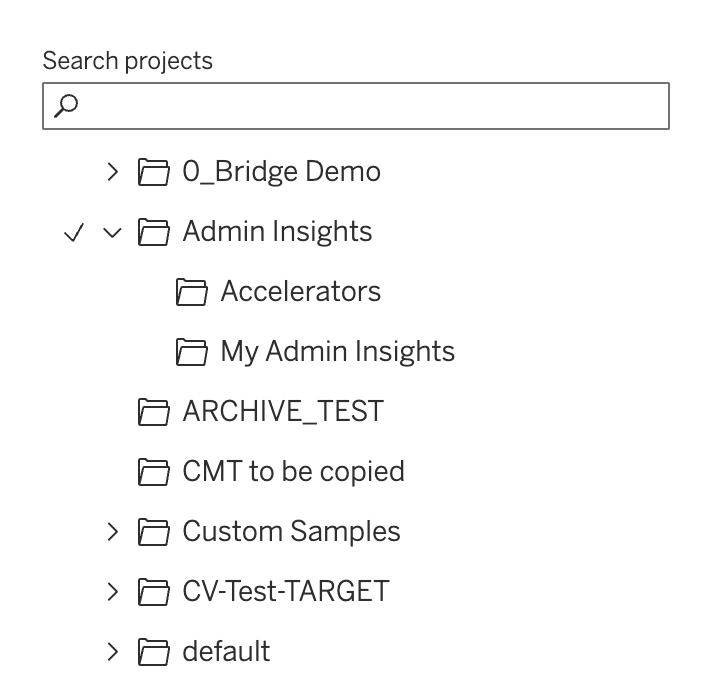
On top of this, each project can have some additional meta data, e.g. who owns the project and a description. Now, the description is interesting as it is a text field that allows for formatted text up to 4000 characters in length. Moreover, the description text allows for links and inline images.
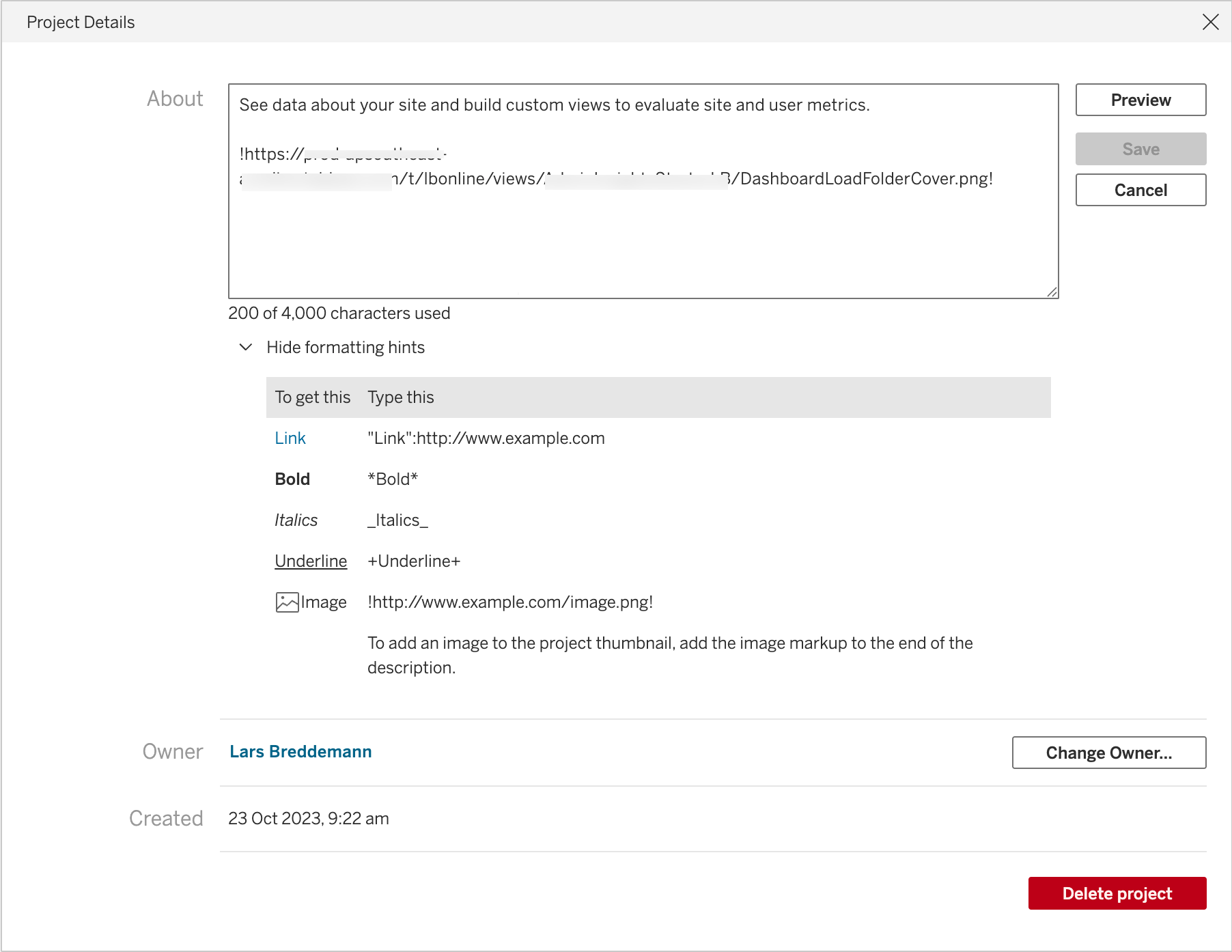
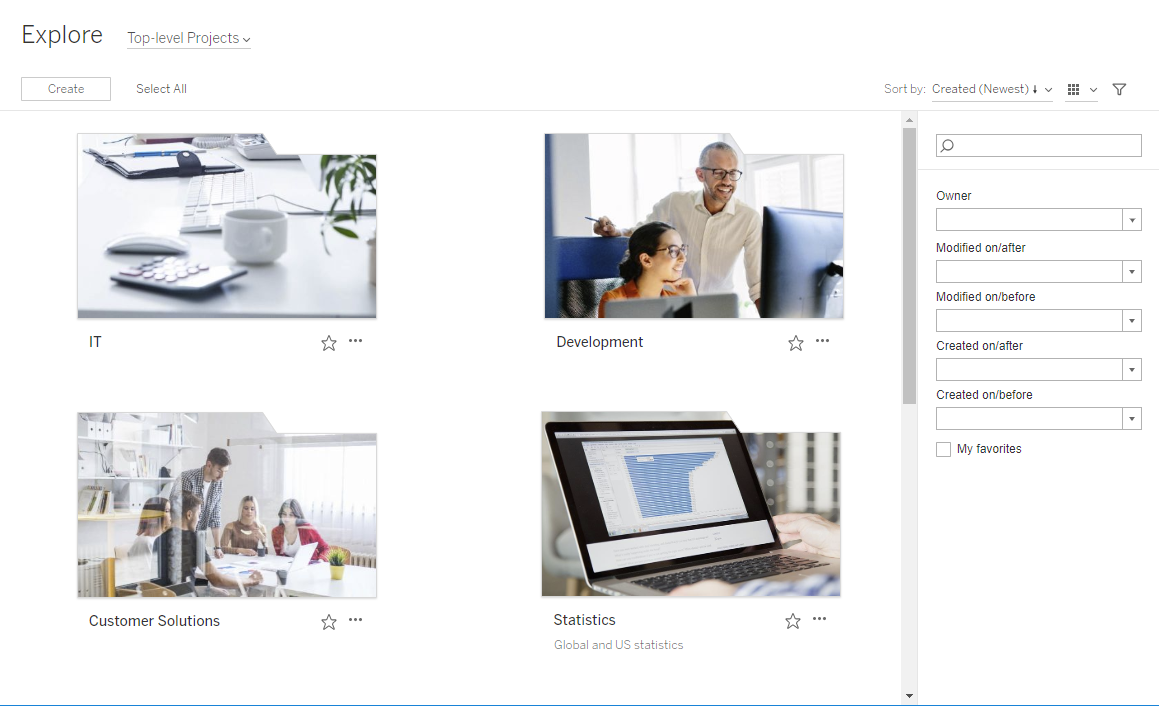
That means Tableau Server/Cloud will, when browsing through the Explore UI and displaying contents in Grid View, load those linked images and render them as part of the project icon. The idea here is to add a flair to folders so that it is easier to see what each folder is for.
This can be a nice touch as shown in the online documentation:
Download Viz Images #
A different and unrelated function of Tableau Server/Cloud is the ability to download rendered visualisations (or the underlying data) based on a URL.
This is described in detailed in Link to a PNG, PDF, or CSV of a View but in short:
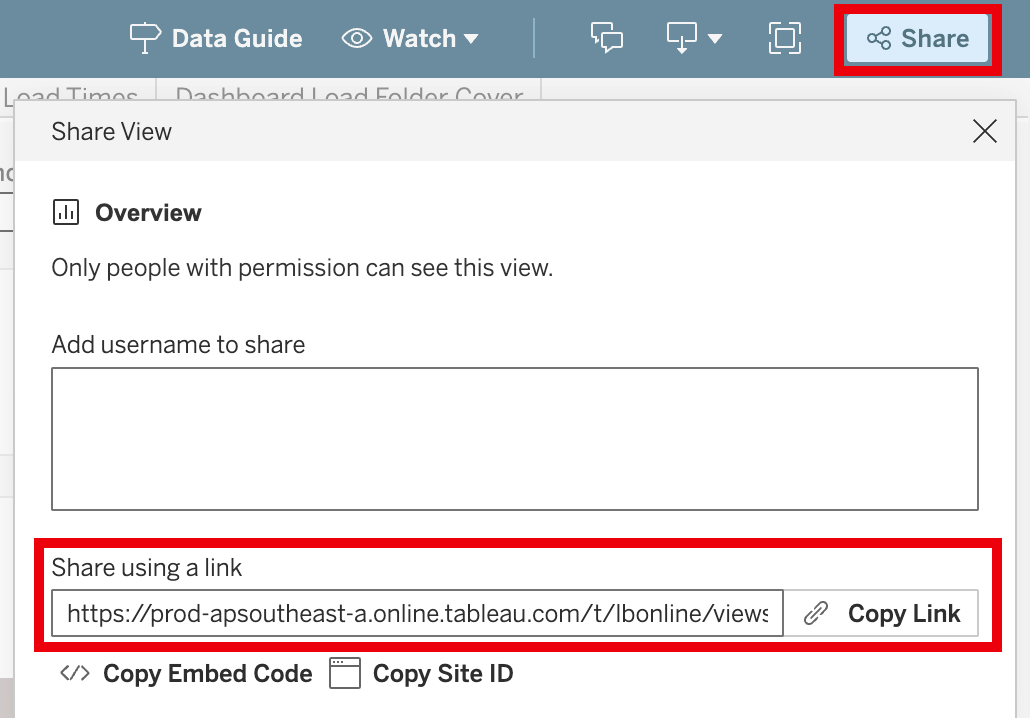
One can simply add the desired file extension ( .png or .pdf) to the share URL of a visualisation and Tableau Server/Cloud sends the corresponding image file to the browser.
Getting the right share URL is easy, too:
There are many uses for this functionality and I will skip discussing those at this point.
What is important for this post is that this download viz image function also works when the viz share URL is used in the project description.
With this, one can make a project image that is dynamically generated based on a Tableau viz!
This allows for a very simple overview vis like so:
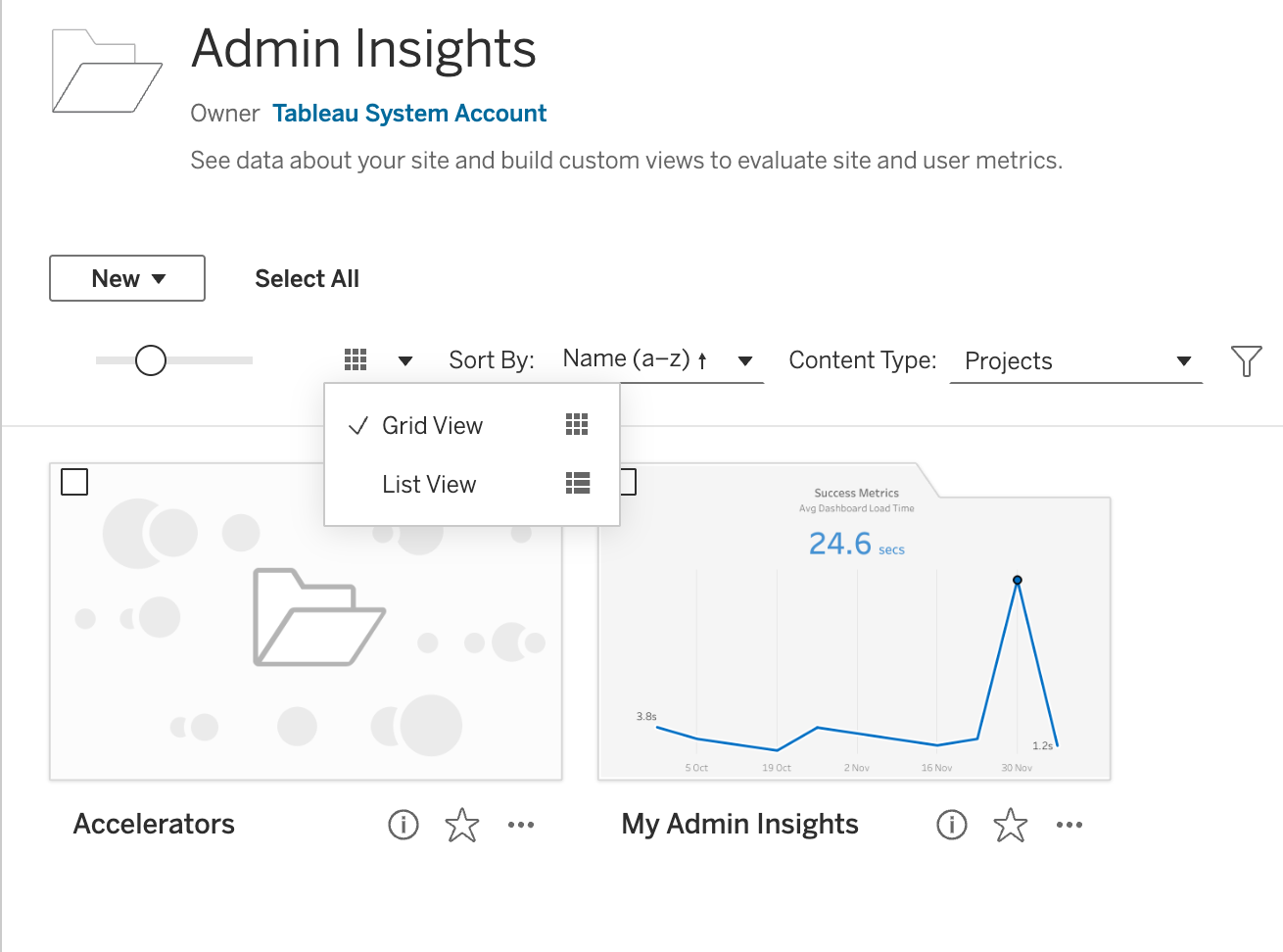
Obviously, the options to do something with this viz are very limited, i.e. there are none. It really is just decorative. If one wants to be able to do something, anything with a viz like this, then Tableau Pulse or an actual Tableau viz are the tools of choice here.
It is probably also worth noting that the picture will be generated and re-downloaded by the browser every single time. (cache policy is private, max-age=0, must-revalidate).
For static images, e.g. from a CDN the cache policy of the image server is used, making for a much more efficient use of caching.
The call is coming from inside the house… or is it? #
Now, one may assume that this kind of of processing is handled by Tableau Server/Cloud and that the rendered project image with the overlayed picture of the viz is send as is to the browser.
That is, however, not the case at all.
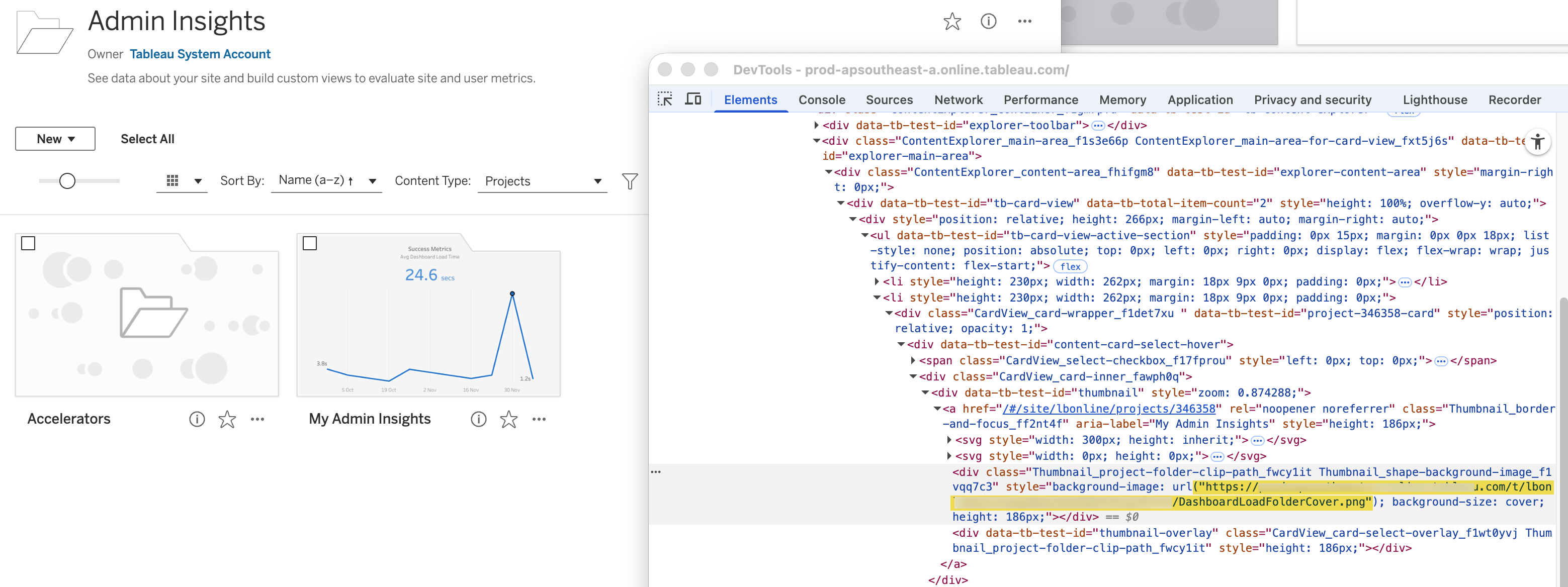
Instead, the image link is handed to the users’ browser and left to be resolved from there.
Doing it this way also makes sure that the access to this image - and the underlying viz and data - is only possible if the current user has the right permission to it.
If the browser user happens to not be logged in when trying to access the URL, the request is redirected to the Tableau login page.
If the logged in user does not have the right permissions to access this viz and the rendered picture, an error image is shown in the Explore project overview instead.
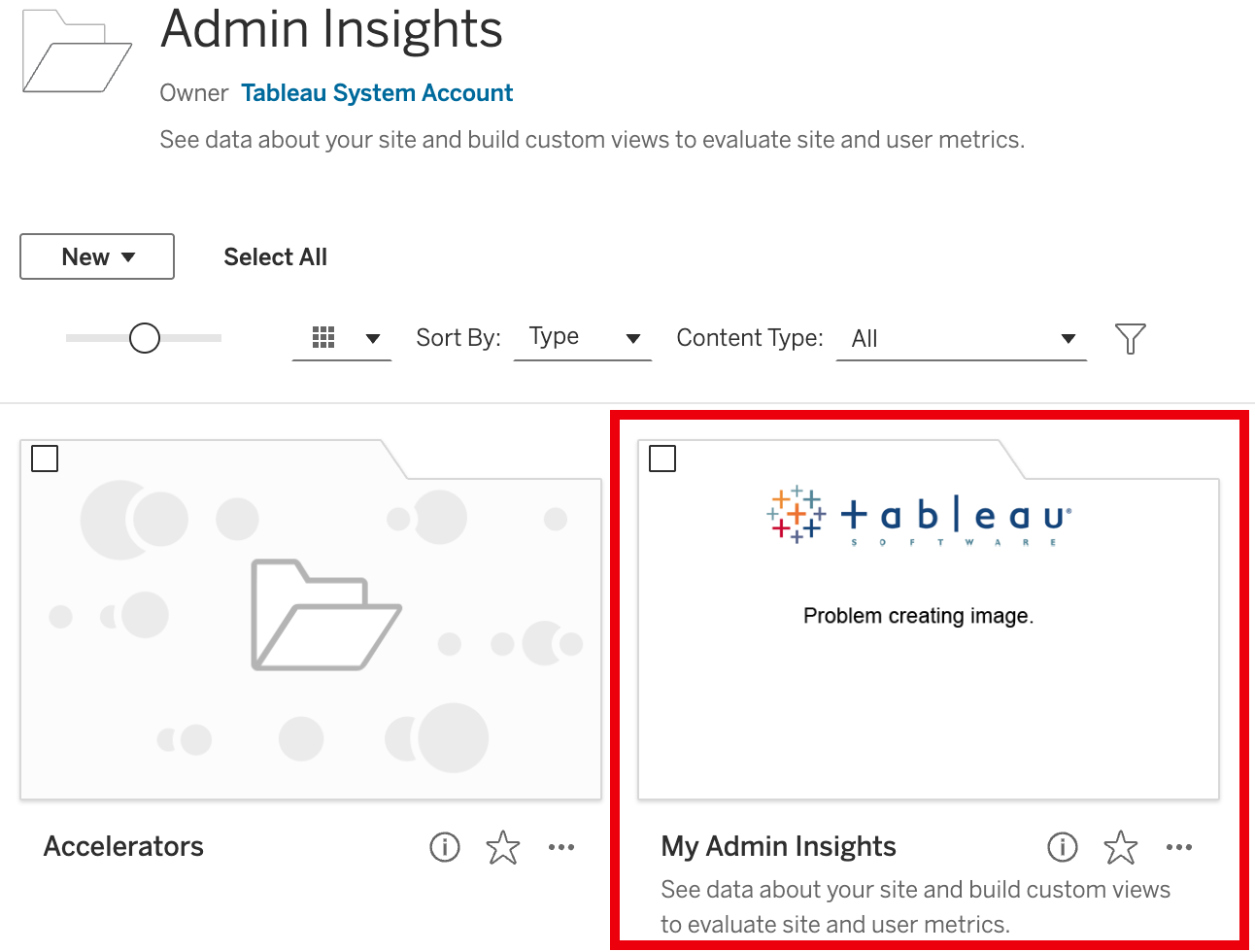
And this is how you feed Tableau Server/Cloud vizzes back into its own UI.
There you go, now you know!
Title image for this post is taken from the Wikipedia article Ouroboros.